Are you experiencing an issue within your GenetiQ software? Before you contact our support team, use this checklist to work through your problem. These steps may help you resolve the problem yourself or help our support team understand what may be causing the issue.
Start With These Checks
Before moving on, try these quick steps. They may resolve the issue straight away:
- Close and reopen the application to see if the issue clears
- Sign out and sign back in to refresh your session
- Restart your device and try again
- Check with a colleague to see if they are experiencing the same issue
If the issue persists after these checks, continue to the next section for further troubleshooting steps.
Find Help by Navigating the GenetiQ Hub
Before raising a ticket with our support team, we recommend checking the GenetiQ Hub. You may be able to find the information you need in one of the following areas:
You can also use the search function to quickly find information related to your issue. If you know specific details about the problem, search for relevant keywords or wording from any error messages you received.
Identify What Caused the Issue
Understanding exactly what happened is an important first step when troubleshooting an issue. Think about what you were doing in the GenetiQ application when the problem occurred.
What were you trying to do, and what happened instead? For example, did you receive an error message, did something fail to load, or did the task shut down unexpectedly?
Capturing the steps you took and what happened can give you a good idea as to why the issue occurred.
If possible, try to reproduce the issue and make a note of the following:
- Can you document the process step-by-step?
- What information or data did you enter?
- Which fields, screens or options did you use?
- Can you provide a short screen recording showing the issue?

Capture the Error Message
Capturing the error message exactly as it appears can help you find the relevant guidance on the GenetiQ Hub or help our support team identify the likely cause more quickly.
If possible, make a note of the following:
- Take a screenshot of the full error message
- Copy and paste the exact wording into the GenetiQ Hub search function to check for related guidance. If you need to raise a support ticket, include the wording there, too.
- Record the date and time the error occurred, as this can help our support team when trying to solve your issue
- User tip: Enable Auto Submit in Exceptionless to automatically submit exception logs without requiring users to do so manually. This makes it easier to monitor, track and identify recurring errors across different servers and environments.

See If Other Users Are Affected
Finding out who is affected can help determine whether the issue is user-specific, or device-specific.
- Ask a colleague to complete the same task. If they can complete it successfully, the issue may be related to your user account, permissions or device.
- Try the same task on another device, such as a different computer. If it works elsewhere, the issue may be specific to your device.
- Check your network or internet connection. If multiple users are experiencing connectivity problems, there may be an issue with your network.
- Check with your internal IT team. They may be able to identify and resolve issues relating to your device, network, permissions or local environment.
Confirm Your Current Settings
If the issue is still unresolved and you need to contact our support team, we will need to gather some details about your current setup before proceeding further.
Please include:
- Your GenetiQ product and version or release number
- Your current operating system
- The web browser that you are using, if relevant
- Any other system information that may be related to the issue you are experiencing
Your IT team will be able to help you retrieve these details.
Any Recent System Changes?
If you have recently applied an update to your system, this may help our support team identify the root cause of the issue.
- Were any software updates installed or removed?
Submitting a Ticket
Please include the following information, as our support team will need to contact you about the issue you are having.
- Name and email address
- Let us know if your IT team need to be involved
- Confirm whether remote access can be arranged, if needed
- A clear summary of the problem
- The steps needed to reproduce it
- The error message being displayed to you
- Screenshot or recording of the issue, if possible
- Your product and system information
- Any recent changes made to your system settings
- Your contact details
To log a ticket with our support team, you need to visit https://support.genetiqsoftware.com/.Once on this page, you will need to log in and then you will be able to raise a ticket.
If you do not have a login to our support system, please reach out to your account manager and they will be able to set one up for you.

What a Good Ticket Looks Like
One of our Team Leads in Application Support supplied details on what a good ticket looks like.
Here it is with details and screenshots.
User receives “Posting Period Closed” when attempting to post Purchase Invoice PI48372. Issue started this morning and affects two users. Workstation restarted with no improvement. Affected Users logged out and in again with no improvement. Screenshot attached. Users unable to process supplier invoices manually and require resolution ASAP.
Attachments
- Error screenshot attached
- Log files attached (if available)
- Deployment/version information attached
- SQL script output attached (where applicable)
- Supporting documents attached
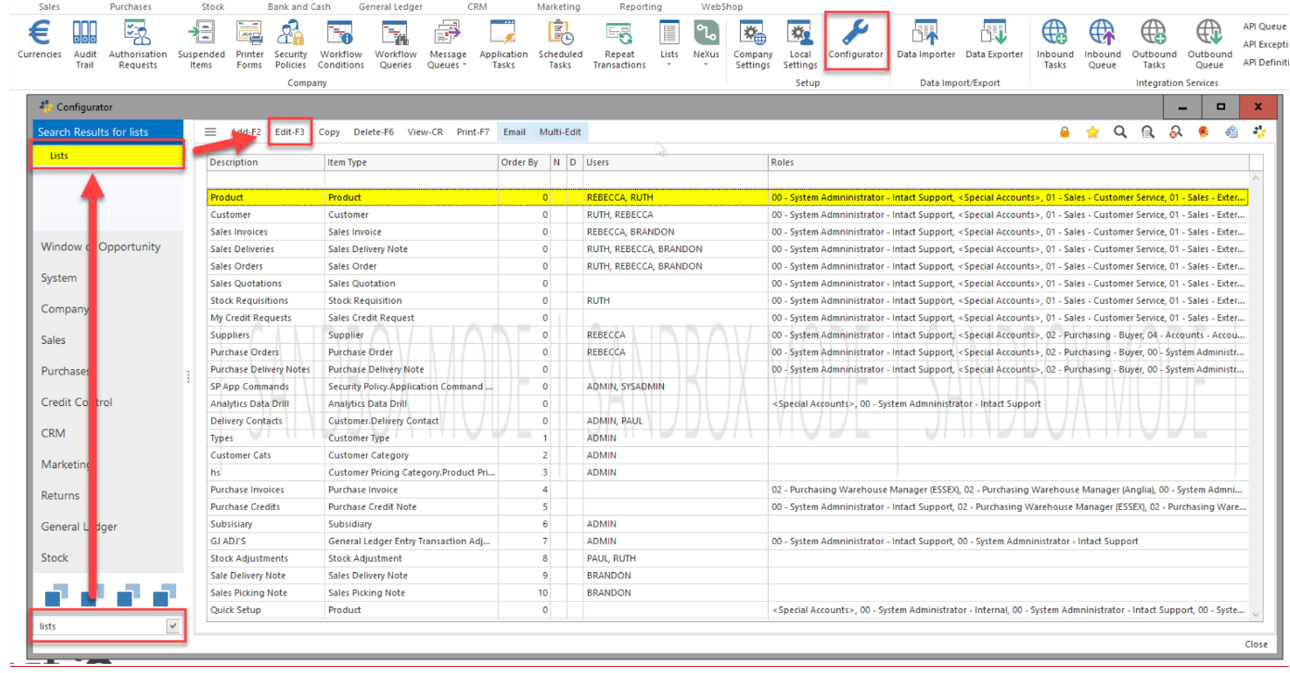
Untick the user or their role
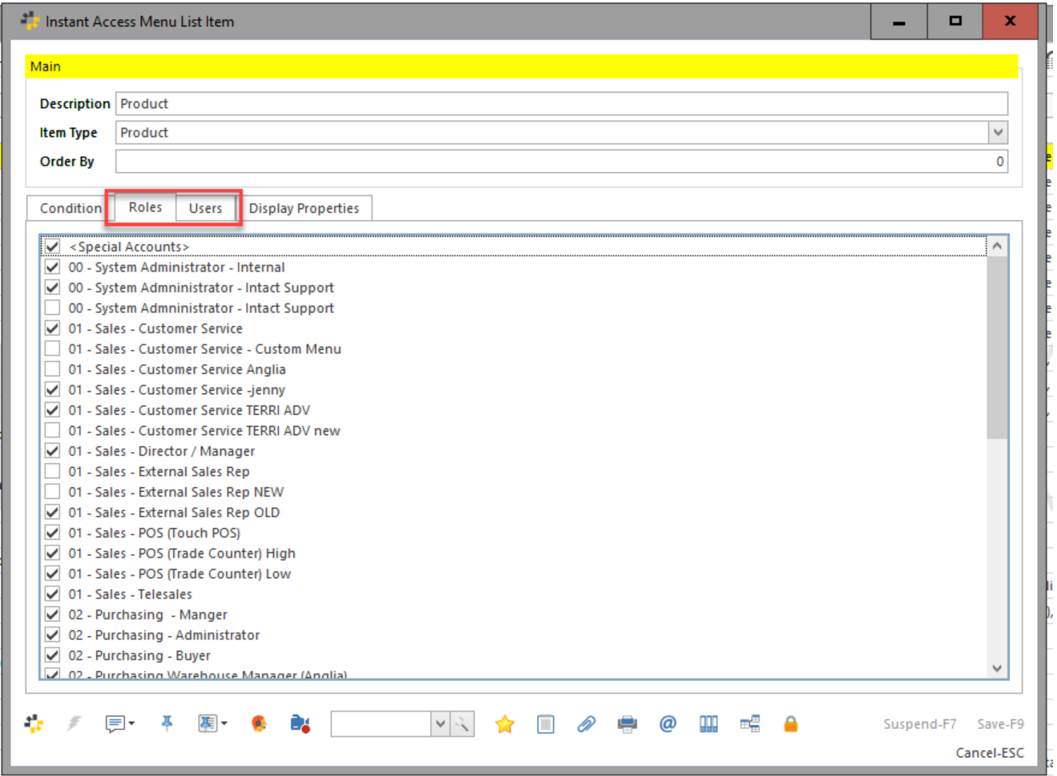
I hope this has answered your query please let me know if you have any further queries. Please test this in you sandbox environment first.
Thank you for confirming, understood! Using the filter method I mentioned earlier will more than likely be enough as it will remove the inactive options from the initial screen by default (if saved in that way). This wouldn’t require custom work as it can be done by your Sysadmin with access to the security policies.
For example, in the scenario you mentioned, if a user searches “DHTO” and currently all products display like below
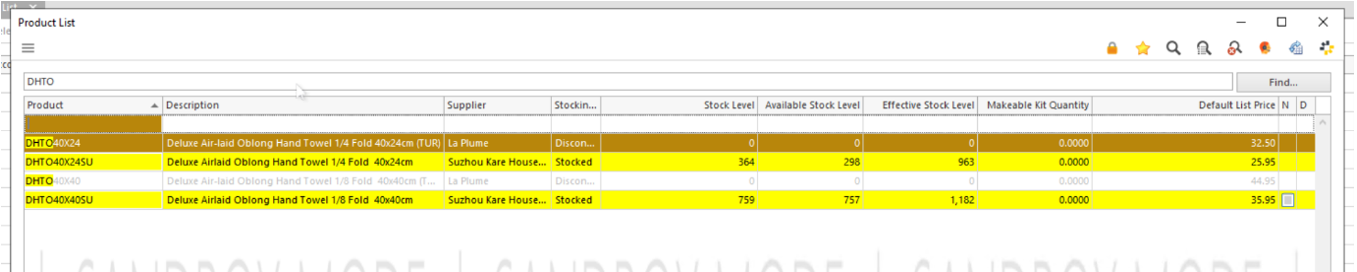
A filter being added where the Workflow Status column is filtered as “Does not equal – INACTIVE” then those inactive products will not appear by default.

The only issue with this is that the filter can still be unchecked/closed off by the team members which will again make everything available. I think it may require some custom work if you wanted the inactive products to be removed completely on this screen, I would need to raise that with the necessary team if you would prefer to go down that route instead.